
Are you ready to become a WordPress troubleshooting master?
This comprehensive WordPress troubleshooting checklist will seamlessly guide you through identifying and resolving common WordPress issues, ensuring your website remains secure, performs optimally, and delivers a seamless user experience. So, embark on this journey and transform yourself into a WordPress troubleshooting pro.
With this checklist as your guide, you’ll be equipped to tackle a wide range of WordPress issues, from resolving White Screen of Death (WSOD) errors to optimizing performance for peak user satisfaction.
Are you facing any specific WordPress issues right now?
If so, let’s start by identifying the problem. Share your symptoms, and we’ll work together to pinpoint the underlying cause and find the most effective solution.
Along the way, you’ll gain valuable insights into the inner workings of WordPress, empowering you to maintain a healthy and thriving website.
Ready to get started? Let’s dive into the world of WordPress troubleshooting!
Common WordPress Errors and Their Troubleshooting Steps
WordPress is a widely used content management system, but like any software, it may encounter errors. Here are some common WordPress errors and troubleshooting steps:
White Screen of Death (WSOD)
The dreaded WSOD, appearing as a blank white screen without any error messages, can be caused by various factors, including plugin conflicts, PHP errors, or memory issues. To effectively troubleshoot this error:
- Deactivate All Plugins: To isolate the issue and determine if a specific plugin is causing the WSOD, begin by deactivating all plugins. This can be done through the WordPress dashboard by navigating to Plugins > Installed Plugins and selecting the checkbox next to all plugins. Click the “Deactivate” button to disable all plugins simultaneously. Reload your website to observe if the WSOD persists. If the error disappears, it indicates that a plugin is indeed the culprit. To pinpoint the exact plugin causing the problem, reactivate the plugins one at a time, reloading the website after each activation. Once the WSOD reappears, you have identified the offending plugin.
- Increase PHP Memory Limit: Insufficient PHP memory can trigger WSOD errors. Try increasing the PHP memory limit in your wp-config.php file.
In some cases, insufficient PHP memory can trigger WSOD errors. This is because WordPress requires a certain amount of memory to function properly, and if the available memory is inadequate, it can lead to system instability and errors. To address this issue, try increasing the PHP memory limit in your wp-config.php file. Access the wp-config.php file using an FTP client or file manager provided by your hosting provider. Locate the following line of code:
PHP
define('WP_MEMORY_LIMIT', '64MB');
Change the value of ‘WP_MEMORY_LIMIT’ to a higher value, such as 128MB or 256MB. Save the wp- config.php file and reload your website. If the WSOD disappears, it indicates that the increased memory limit has resolved the issue.
- Switch to a Default WordPress Theme: If the WSOD persists despite disabling plugins and increasing PHP memory, consider switching to a default WordPress theme. This step helps eliminate potential conflicts or compatibility issues caused by your currently active theme. To switch themes, navigate to Appearance > Themes from your WordPress dashboard. Activate a default theme, such as Twenty Twenty-Two, and reload your website. If the WSOD disappears, it indicates that the previous theme was likely causing the conflict.
- Contact Hosting Provider: If none of the aforementioned solutions resolve the WSOD, it’s recommended to contact your hosting provider for further assistance. They may have insights into server-side issues, underlying configurations, or potential conflicts with other applications or services running on your hosting environment. Your hosting provider’s technical support team can provide tailored guidance and troubleshooting steps specific to your hosting setup.
500 Internal Server Error
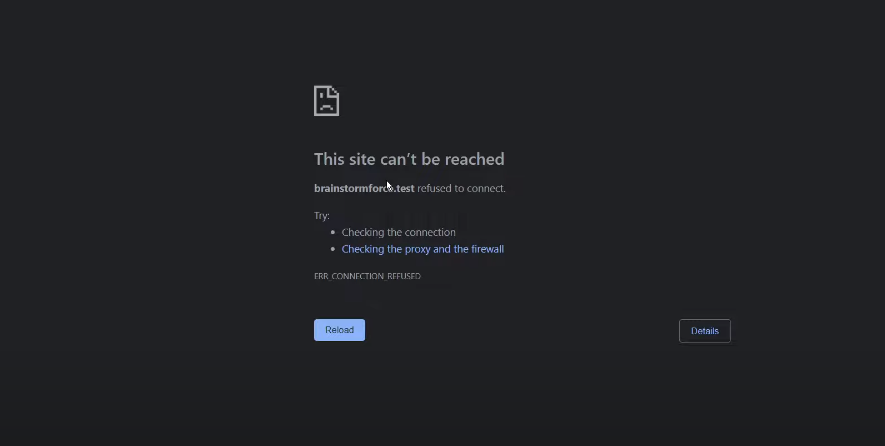
This error indicates a problem with the server processing your website’s requests. Common causes include incorrect file permissions, corrupt .htaccess files, or server-side issues:
- Check File Permissions: Verify that the WordPress core files and folders have the correct permissions. Ensure that the server has written access to these files and folders.
- Reset .htaccess File: If the problem persists, try renaming the .htaccess file to .htaccess_old and creating a new one from scratch. This can resolve issues caused by corrupt or outdated .htaccess configurations.
- Contact Hosting Provider: If the error persists, contact your hosting provider to investigate potential server-side issues. They can check for server logs, resource usage, and underlying configuration problems that could be causing the 500 Internal Server Error.
404 Not Found Error
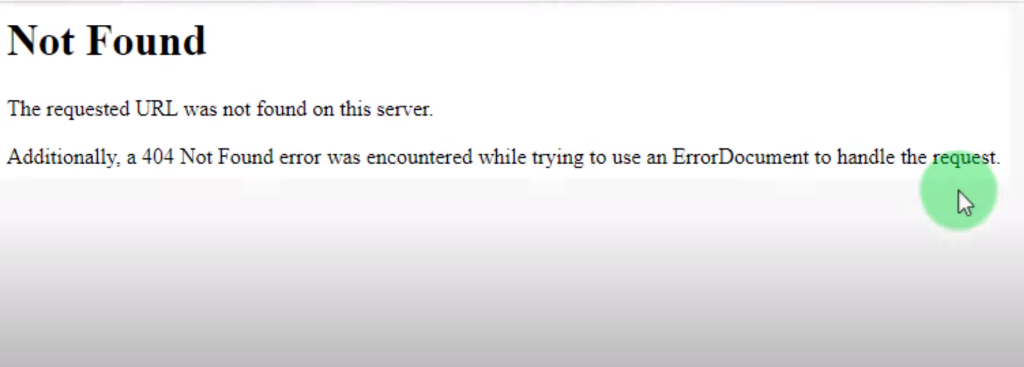
The 404 Not Found Error is a common occurrence in WordPress websites, indicating that the requested page or resource could not be located by the server. This error can arise from various factors, including incorrect permalink structures, missing pages, or conflicting redirects. To effectively troubleshoot and resolve this issue, consider the following steps:
- Check Permalink Structure: Review your permalink settings in WordPress Settings > Permalinks to ensure they are configured correctly. A well-structured permalink structure enhances user-friendliness and consistency with your website’s organization. Choose a permalink structure that aligns with your website’s content and navigation conventions.
- Verify Page Existence: Double-check that the requested page or resource exists within your WordPress installation. If the page has been deleted or moved, create a redirect or restore the page from a backup.
- Check Redirects: Carefully review any redirects you have set up in your WordPress dashboard or .htaccess file to ensure they are not causing conflicts. Verify that redirects are pointing to the correct URLs and not creating loops or infinite redirects, which can lead to browser errors and hinder user navigation. Double-check the syntax and logic of your redirect rules to ensure they are functioning as intended.
Database Connection Error
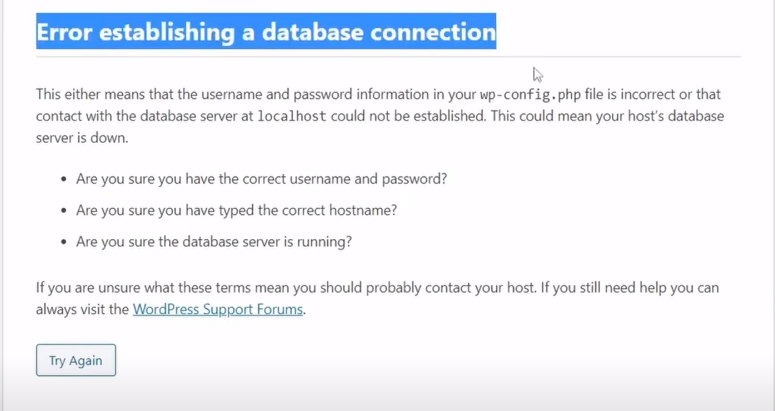
This error occurs when WordPress cannot connect to the database. This error can be caused by incorrect database credentials, a malfunctioning database server, or firewall restrictions:
- Verify Database Credentials: Scrutinize the database credentials specified in your wp-config.php file to ensure they are accurate and match the credentials provided by your hosting provider. Carefully check the database username, password, and hostname for any typos or inconsistencies. Ensure that the credentials have not expired or been changed without your knowledge.
- Check Database Server Status: Confirm that the database server is running smoothly and accessible to WordPress. Contact your hosting provider if the database server is down or experiencing technical difficulties. They can provide insights into server status, potential maintenance activities, or underlying technical issues that might be affecting database connectivity.
- Verify Firewall Rules: Thoroughly review your firewall settings to ensure they are not inadvertently blocking access to the database. Check for any rules that might be restricting connections to the database server or specific database ports. Verify that firewall configurations are properly configured to allow legitimate database access while safeguarding your website from potential security threats.
Plugin Conflicts:
- Plugin conflicts can occur when two or more plugins are trying to use the same resources or when they are not compatible with each other.
- Plugin conflicts can cause a variety of problems, including:
- White Screen of Death (WSOD)
- 404 Not Found errors
- Slow performance
- Functionality issues
How to Identify Plugin Conflicts:
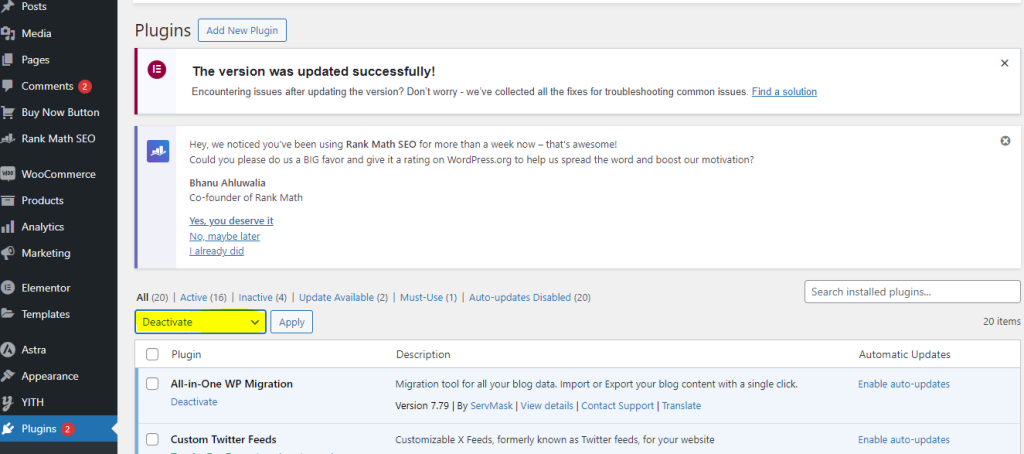
- Deactivate all plugins: The first step is to deactivate all of your plugins. This will help you to isolate the problem and determine if one of your plugins is causing the issue. To deactivate all of your plugins, go to Plugins > Installed Plugins in your WordPress dashboard. Select all of the plugins and then click the Deactivate button.
- Reactivate plugins one by one: Once you have deactivated all of your plugins, reactivate them one at a time. After each plugin is reactivated, test your website to see if the problem has returned. If the problem returns after you reactivate a plugin, then that plugin is likely the culprit.
- Check plugin compatibility: It is also important to check the compatibility of your plugins with your WordPress version and other installed plugins. You can do this by checking the plugin’s documentation or by searching for the plugin on the WordPress.org plugin directory.
How to Resolve Plugin Conflicts:
Once you have identified the plugin that is causing the conflict, you can try the following:
- Update the plugin: The developer may have released an update that fixes the conflict.
- Disable specific features of the plugin: Some plugins can be configured to disable certain features. This may resolve the conflict if a specific feature of the plugin causes the problem.
- Replace the plugin: If you are unable to resolve the conflict, you may need to replace the plugin with a different one.
Tips for Preventing Plugin Conflicts:
- Install plugins from trusted sources: Only install plugins from the WordPress.org plugin directory or reputable third-party sources.
- Keep your plugins up to date: Plugin developers regularly release updates to fix bugs and security vulnerabilities.
- Test new plugins carefully: Before installing a new plugin, test it on a staging site to make sure it does not conflict with your existing plugins.
- Use a plugin conflict checker: There are several plugins available that can help you identify potential plugin conflicts.
Slow Performance
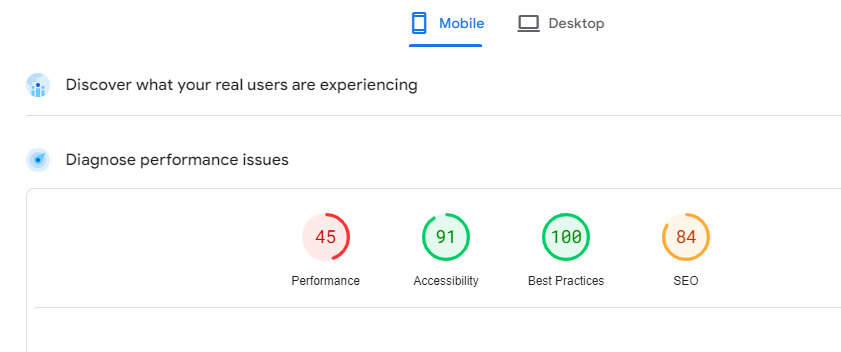
A slow WordPress website can frustrate your visitors and hurt your search engine rankings. If you’re experiencing slow loading times, there are several things you can do to troubleshoot the problem.
Use performance testing tools to identify performance bottlenecks.
There are several free and paid performance testing tools available that can help you identify where your website is slowing down. Some popular tools include:
- Google PageSpeed Insights: This free tool from Google provides a score for your website’s performance and offers suggestions for improvement.
- Pingdom: This paid tool provides more detailed reports on your website’s performance, including waterfall charts that show how long each element of your page is taking to load.
- GTmetrix: This free tool provides a comprehensive report on your website’s performance, including suggestions for optimizing your images, CSS, and JavaScript.
Optimize images using plugins or tools like Smush or Imagify.
Large images are one of the most common causes of slow loading times. Make sure your images are optimized for the web by reducing their file size without sacrificing quality. There are several plugins and tools available that can help you optimize your images, including:
- Smush: This free plugin automatically optimizes your images when you upload them to your WordPress site.
- Imagify: This paid plugin offers more advanced image optimization features, such as lossless compression and image resizing.
Disable unnecessary plugins and consider using lightweight alternatives.
Plugins can sometimes conflict with each other or with your theme, causing slow loading times. If you have a lot of plugins installed, consider disabling some of them to see if that improves your website’s performance. You can also try switching to lightweight alternatives for any plugins that you use regularly.
Enable caching using a plugin like WP Rocket or W3 Total Cache.
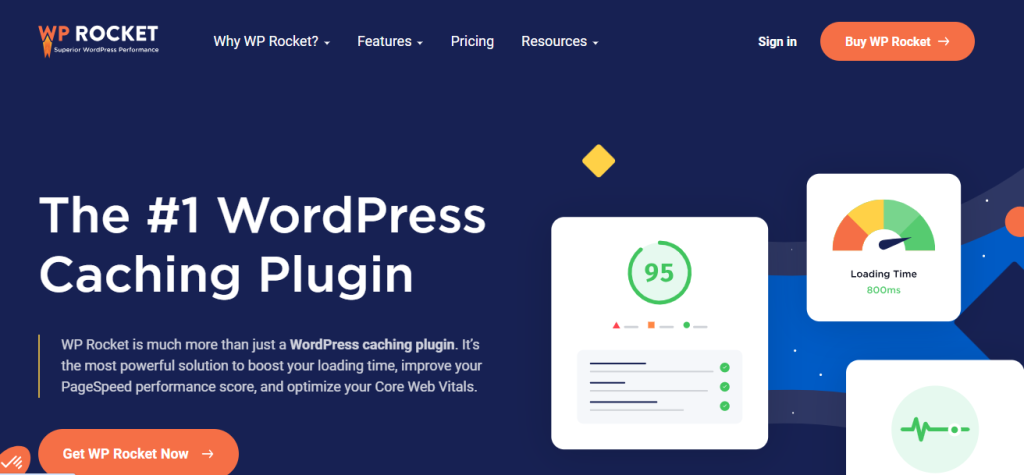
Caching can help improve your website’s performance by storing static content so that it doesn’t have to be generated each time a page is loaded. There are several caching plugins available, including:
- WP Rocket: This paid plugin is popular for its ease of use and powerful features.
- W3 Total Cache: This free plugin is a more complex option, but it offers more control over your cache settings.
Upgrade your hosting plan if necessary.
If you’ve tried all of the above tips and your website is still slow, you may need to upgrade your hosting plan. Your current hosting plan may not be providing enough resources for your website, especially if your website is growing in traffic.
Additional WordPress Troubleshooting Tips
Utilize Debugging Tools
WordPress offers a built-in debugging mode that serves as a valuable tool for identifying the root cause of errors. By enabling debugging mode, you can activate error logging, which meticulously captures and records any errors or warnings that occur during your website’s operation. This comprehensive error log provides valuable insights into the nature and location of the problem, enabling you to pinpoint the source of the issue with greater precision.
Seek Community Support
Leverage the vast knowledge and experience of the WordPress community by actively engaging in its various forums, support groups, and online resources. Tapping into this collective wisdom can lead to valuable solutions or insights from other users who have encountered similar issues. Engaging in these communities not only provides access to potential solutions but also fosters a sense of collaboration and shared learning within the WordPress ecosystem.
Contact Your Hosting Provider
If you’re unable to resolve an issue on your own, reach out to your hosting provider for technical assistance. They may have access to more advanced troubleshooting tools or can provide specific guidance based on your server configuration.
Conclusion
WordPress troubleshooting can be a challenging task; however, with the right approach and resources, you can effectively identify and resolve issues. This ensures your website remains secure, performs optimally, and delivers a positive user experience. By following the guidelines outlined in this comprehensive checklist, you can maintain a healthy and robust WordPress website, meeting your needs and expectations to the maximum extent.
Regular maintenance and proactive measures are key to preventing issues and keeping your WordPress website running smoothly. Stay informed about WordPress updates, security advisories, and best practices to maintain a secure and reliable online presence.
FAQs
What is the White Screen of Death (WSOD) in WordPress, and how can I fix it?The WSOD is a blank white screen without error messages, often caused by plugin conflicts, PHP errors, or insufficient memory. To fix it, deactivate all plugins, increase PHP memory in wp-config.php, or switch to a default theme. If issues persist, contact your hosting provider.
How do I troubleshoot a 500 Internal Server Error on my WordPress site?The 500 Internal Server Error suggests server processing issues. Check file permissions, reset the .htaccess file, or contact your hosting provider for assistance with server-side problems like logs, resource usage, or configurations.
What steps can I take to resolve a 404 Not Found Error on my WordPress site?The 404 Not Found Error indicates the server can’t locate the requested page. Troubleshoot by checking permalink structure, verifying page existence, and reviewing redirects in WordPress Settings or .htaccess. Ensure proper syntax and logic in redirect rules.
How can I address a database connection error in WordPress?A database connection error occurs when WordPress can’t connect to the database. Verify accurate database credentials in wp-config.php, check database server status, and review firewall rules to ensure proper access without blocking connections.
What are some effective tips for optimizing a slow WordPress website?
To enhance the speed of a sluggish WordPress site, employ performance testing tools like Google PageSpeed Insights. Furthermore, optimize images efficiently by utilizing plugins such as Smush or Imagify. Additionally, disable any unnecessary plugins that may be contributing to the slowdown. Implement caching strategies with plugins like WP Rocket or W3 Total Cache to improve overall site responsiveness. If performance issues persist, contemplate upgrading your hosting plan to ensure optimal resources and speed.